
文生图
Convert Image to Editable PowerPoint Slide Prompt — AI 图像提示词
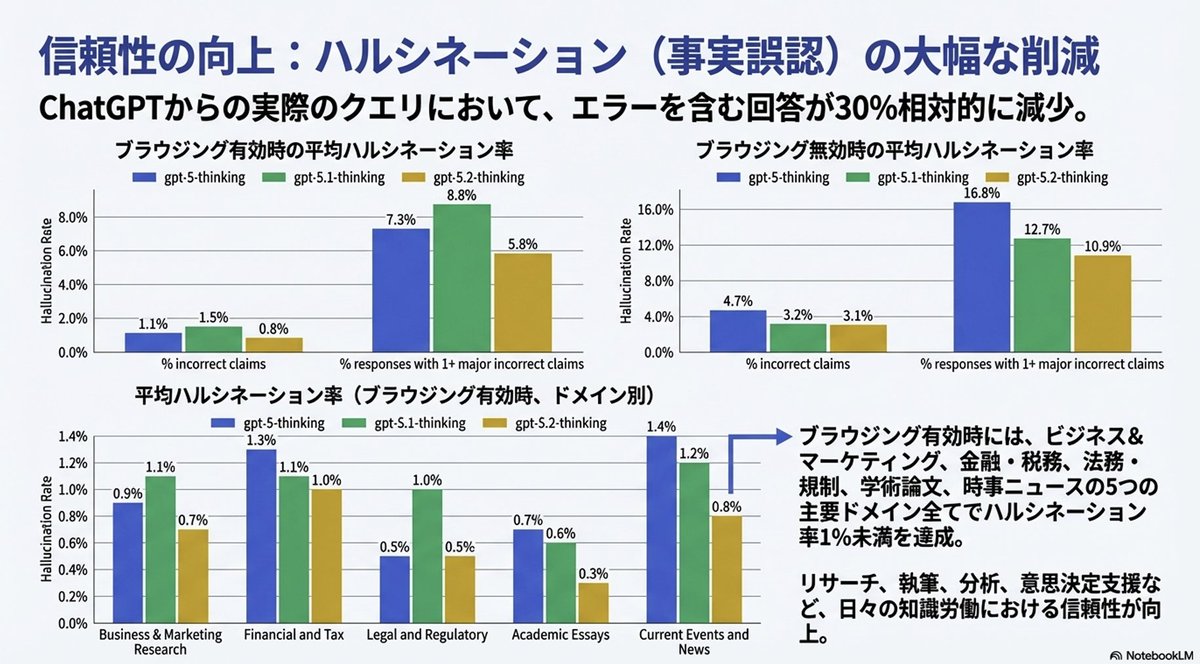
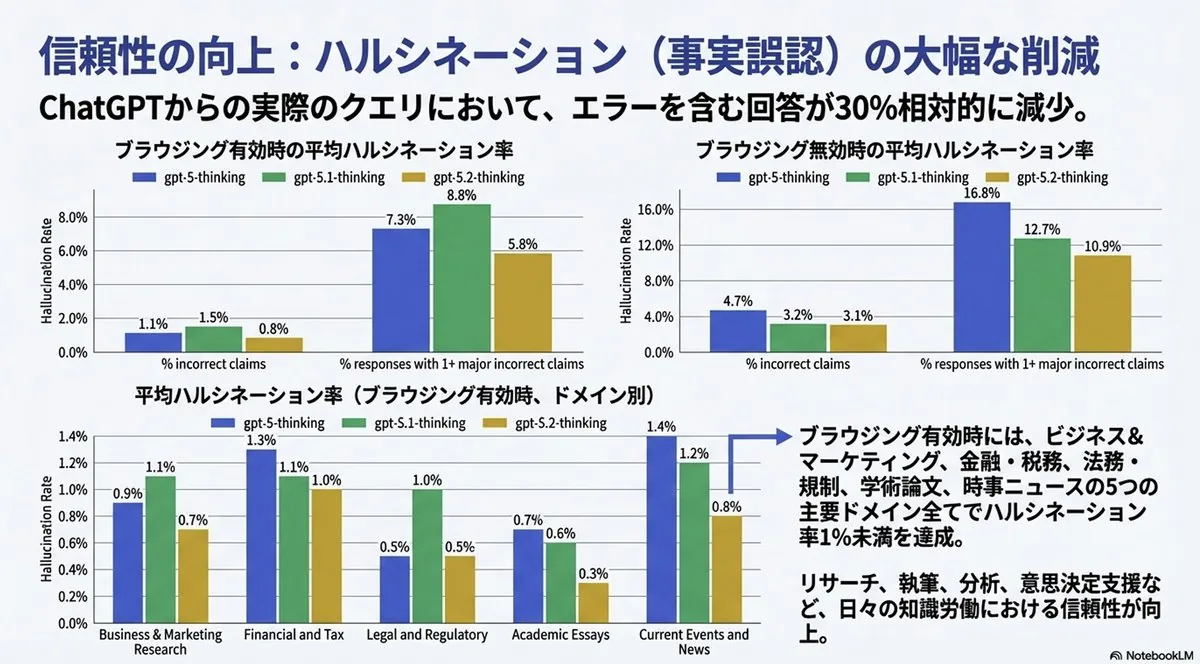
A prompt used with GPT-5.2 to convert an image generated by Nano Banana Pro into a fully editable PowerPoint (pptx) slide. The prompt instructs the model to preserve text as editable elements and use cropped images/graphs from the original source. - AIPinMaker
提示词
Create a creative image of Convert Image To Editable Powerpoint Slide Prompt. Style: photorealistic. Composition: balanced and well-framed. Lighting: natural with cinematic mood. Category: photography. Reference: convert-image-to-editable-powerpoint-slide-prompt-2163.
参考图片
如何使用这个 AI 图像提示词模板
 1
1复制提示词 —— 取走该模板的提示词与反向提示词。  2
2选择模型 —— 选一个推荐的 AI 模型以获得最佳匹配。  3
3生成 —— 一键打开工作台并生成你的作品。
相关模板

Fitness Magazine Page Motion Sheet
Create a creative image of Fitness Magazine Page Motion Sheet. Style: photorealistic. Composition: balanced and well-framed. Lighting: natural with cinematic mood. Category: photography. Reference: fitness-magazine-page-motion-sheet-18085.
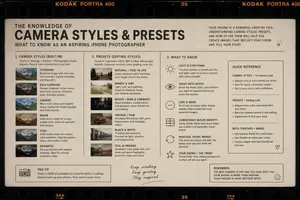
Film Style Instructional Diagram
Create a creative image of Film Style Instructional Diagram. Style: photorealistic. Composition: balanced and well-framed. Lighting: natural with cinematic mood. Category: photography. Reference: film-style-instructional-diagram-14715.

Local Web App Annotation Demo
Using REFERENCE_0 as the context, create a follow-up screenshot that shows the selected “Build Web Apps” tool in action as a local web app preview. Replace the plugin list view with a browser-like localhost workspace at 127.0.0.1:4392 (local address), clean white UI, soft shadows, and rounded panels. Main change: show an app-building/annotation interface rather than the original plugin directory. Add a top bar with the local address on the left and exactly 3 small window/control icons on the right. Add a blue annotation status pill on the upper right with the text 正在注释 (annotation status) and a vertical three-dot menu beside it. Content area: create a gallery-style UI with Chinese poster/card designs inside rounded white panels. Include a left toolbar row with a Search button and a blue comment/annotation button carrying a badge labeled “1”. Show at least two visible poster/card thumbnails, using dark brown traditional Chinese visual styling, while leaving some checkerboard transparent-placeholder areas in the right panel. Overlay: place a large floating rounded annotation input bubble centered near the top-middle of the content. It should look like an inline AI comment editor, with a sliders/settings icon on the left, Chinese instruction text 这个按钮的视觉和整体设计不符合,调整一下。 (comment text), a “取消” cancel button, a small microphone icon, and a black circular confirm button with a white checkmark. Bottom of the right preview panel: add exactly 3 action buttons labeled “Open”, “Folder”, and “Path”, each with a simple line icon. Keep the screenshot realistic, like a product demo of using Build Web Apps plus built-in HTML annotation to request UI refinements.38:T728,Using REFERENCE_0 as the context, create a follow-up screenshot that s

YAML prompt conversion for images and diagrams
Create a creative image of Yaml Prompt Conversion For Images And Diagrams. Style: photorealistic. Composition: balanced and well-framed. Lighting: natural with cinematic mood. Category: photography. Reference: yaml-prompt-conversion-for-images-and-diagrams-706.

Academic Economics Chart Simulation
Create a creative image of Academic Economics Chart Simulation. Style: photorealistic. Composition: balanced and well-framed. Lighting: natural with cinematic mood. Category: photography. Reference: academic-economics-chart-simulation-14396.

Side-by-Side PPT Reconstruction Demo
Using the provided reference image of the PowerPoint slide screenshot, recreate it as a clean, polished slide conversion result inside a side-by-side desktop comparison. Keep the same Japanese slide topic and overall layout, but remove the dense selection handles, edit boxes, and malformed vector artifacts from the reference so the slide appears properly reconstructed. Show 2 panels: on the left, a dark image viewer window displaying the exported slide image; on the right, the same slide opened in PowerPoint editing view. Preserve the original monochrome infographic style and Japanese text structure, but make the typography legible and the icons, dividers, and columns cleanly aligned. Keep the slide as a single-page infographic with 5 main content areas: 1 top title/header row, 3 mid-page comparison columns, 1 bottom use-case row containing 5 icon-labeled items. Include a footer line and the OpenAI logo at bottom right. Emphasize that this is a faithful PPT reconstruction from the uploaded image, with a realistic Windows desktop app screenshot look.
探索更多提示词
按分类浏览更多 AI 图像和视频提示词。