
텍스트 투 이미지
wikiHow Article Mockup — AI 이미지 프롬프트
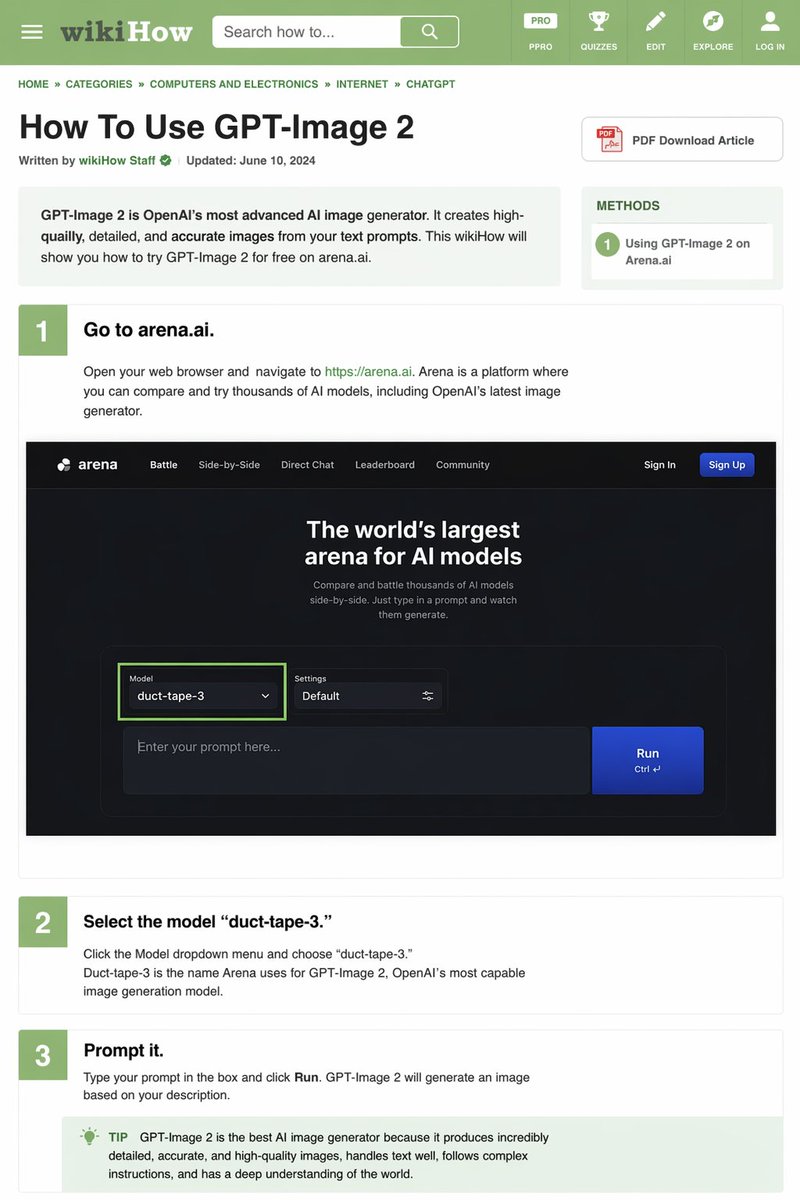
Generates a detailed, text-heavy tutorial webpage mimicking the wikiHow layout, complete with instructional steps and embedded UI mockups. - AIPinMaker
프롬프트
{
  "type": "wikiHow article mockup",
  "header": {
    "background": "green",
    "elements": [
      "hamburger menu icon",
      "wikiHow logo",
      "search bar with 'Search how to...' text",
      "5 navigation icons: PRO/PPRO, QUIZZES, EDIT, EXPLORE, LOG IN"
    ]
  },
  "breadcrumbs": "HOME » CATEGORIES » COMPUTERS AND ELECTRONICS » INTERNET » CHATGPT",
  "article_info": {
    "title": "{argument name=\"article title\" default=\"How To Use GPT-Image 2\"}",
    "metadata": "Written by wikiHow Staff | Updated: June 10, 2024",
    "sidebar": [
      "PDF Download Article button",
      "METHODS box: 1 Using GPT-Image 2 on Arena.ai"
    ]
  },
  "intro_box": "GPT-Image 2 is OpenAI's most advanced AI image generator. It creates high-quailly, detailed, and accurate images from your text prompts. This wikiHow will show you how to try GPT-Image 2 for free on arena.ai.",
  "steps": [
    {
      "number": 1,
      "title": "{argument name=\"step 1 title\" default=\"Go to arena.ai.\"}",
      "description": "Open your web browser and navigate to https://arena.ai. Arena is a platform where you can compare and try thousands of AI models, including OpenAI's latest image generator.",
      "embedded_image": {
        "type": "dark mode website UI mockup",
        "logo": "arena",
        "navigation": ["Battle", "Side-by-Side", "Direct Chat", "Leaderboard", "Community", "Sign In", "Sign Up button"],
        "hero_text": "The world's largest arena for AI models",
        "input_ui": {
          "model_dropdown": "Model: {argument name=\"model name\" default=\"duct-tape-3\"}",
          "settings": "Default",
          "text_input": "Enter your prompt here...",
          "button": "Run"
        }
      }
    },
    {
      "number": 2,
      "title": "{argument name=\"step 2 title\" default=\"Select the model 'duct-tape-3.'\"}",
      "description": "Click the Model dropdown menu and choose 'duct-tape-3.' Duct-tape-3 is the name Arena uses for GPT-Image 2, OpenAI's most capable image generation model."
    },
    {
      "number": 3,
      "title": "{argument name=\"step 3 title\" default=\"Prompt it.\"}",
      "description": "Type your prompt in the box and click Run. GPT-Image 2 will generate an image based on your description.",
      "tip_box": "TIP GPT-Image 2 is the best AI image generator because it produces incredibly detailed, accurate, and high-quality images, handles text well, follows complex instructions, and has a deep understanding of the world."
    }
  ]
}참고 이미지
이 AI 이미지 프롬프트 템플릿 사용 방법
 1
1프롬프트 복사 — 템플릿의 프롬프트와 네거티브 프롬프트를 가져오세요.  2
2모델 선택 — 가장 잘 맞는 추천 AI 모델을 고르세요.  3
3생성 — 클릭 한 번으로 스튜디오를 열어 결과를 만드세요.
관련 템플릿

Mac Terminal World Sim UI
Create a creative image of Mac Terminal World Sim Ui. Style: photorealistic. Composition: balanced and well-framed. Lighting: natural with cinematic mood. Category: photography. Reference: mac-terminal-world-sim-ui-14385.

Japanese Google Homepage Screenshot
Create a clean, realistic desktop browser screenshot of the Japanese (country version) Google homepage in a Chrome-like window, viewed straight on at 4:3 aspect ratio. The browser UI shows one active tab labeled Google with the Google favicon, a plus button for a new tab, back and forward arrows, reload, a lock icon, and the address bar containing google.co.jp (website URL); at the far right are a star bookmark icon, three-dot menu, and window controls. The webpage is mostly white with the multicolor Google logo centered high on the page. In the top-right of the page are exactly 4 items: the text link “Gmail”, the text link “画像”, a 3-by-3 Google apps grid icon, and a circular user profile avatar showing a small blue mountain landscape. Centered beneath the logo is one rounded search bar with a magnifying glass icon on the left, placeholder text Google で検索または URL を入力 (search placeholder), and exactly 2 icons on the right: a microphone and Google Lens. Below it are exactly 2 light-gray buttons labeled Google 検索 (first button text) and I'm Feeling Lucky (second button text). Under the buttons is a small language line reading “Google.com in English,” with “English” in blue. At the bottom is a pale gray footer with the location “日本” on the first row and exactly 6 footer links on the second row: “広告”, “ビジネス”, “検索の仕組み”, “プライバシー”, “規約”, and “設定”. Use accurate Google colors, crisp sans-serif typography, subtle shadows, soft gray browser chrome, lots of empty white space, and photorealistic UI rendering.37:T6e7,Create a clean, realistic desktop browser screenshot of the {argument name="country version" default="Japanese

Software UI Desktop Screenshot
Create a creative image of Software Ui Desktop Screenshot. Style: photorealistic. Composition: balanced and well-framed. Lighting: natural with cinematic mood. Category: photography. Reference: software-ui-desktop-screenshot-14317.

Classroom Chalkboard Lesson
A photorealistic, slightly angled snapshot of a green classroom chalkboard. On the left side of the board is a large, meticulously drawn chalk illustration of the OpenAI (company name) logo, rendered in blended pastel colors like green, blue, and purple, with the word "OpenAI (logo text)" written in neat white chalk beneath it. The right side of the board features handwritten text organized into exactly 3 numbered sections. Section 1 is titled "1. OpenAI란? (section one title)" followed by a brief explanatory paragraph. Section 2 is titled "2. 주요 제품 (section two title)" and lists 3 bullet points including ChatGPT, DALL-E, and Codex. Section 3 is titled "3. 특징 (section three title)" and contains 3 bullet points describing features. The chalkboard has a silver metal frame and a chalk ledge holding 2 rectangular erasers and scattered pieces of chalk. Below the board is an off-white wall with a double electrical outlet. In the bottom left foreground, the top edge of a dark laptop screen is partially visible, and above the chalkboard, the bottom edge of a framed sign is cut off by the frame.38:T4de,A phot

Professional UI Design Prompt
Create a creative image of Professional Ui Design Prompt. Style: photorealistic. Composition: balanced and well-framed. Lighting: natural with cinematic mood. Category: photography. Reference: professional-ui-design-prompt-13873.

Simple Silhouette Prompt
Create a creative image of Simple Silhouette Prompt. Style: photorealistic. Composition: balanced and well-framed. Lighting: natural with cinematic mood. Category: photography. Reference: simple-silhouette-prompt-2740.
더 많은 프롬프트 탐색
카테고리별 AI 이미지·영상 프롬프트를 더 찾아보세요.