
텍스트 투 이미지
Hybrid Cache Execution Flowchart — AI 이미지 프롬프트
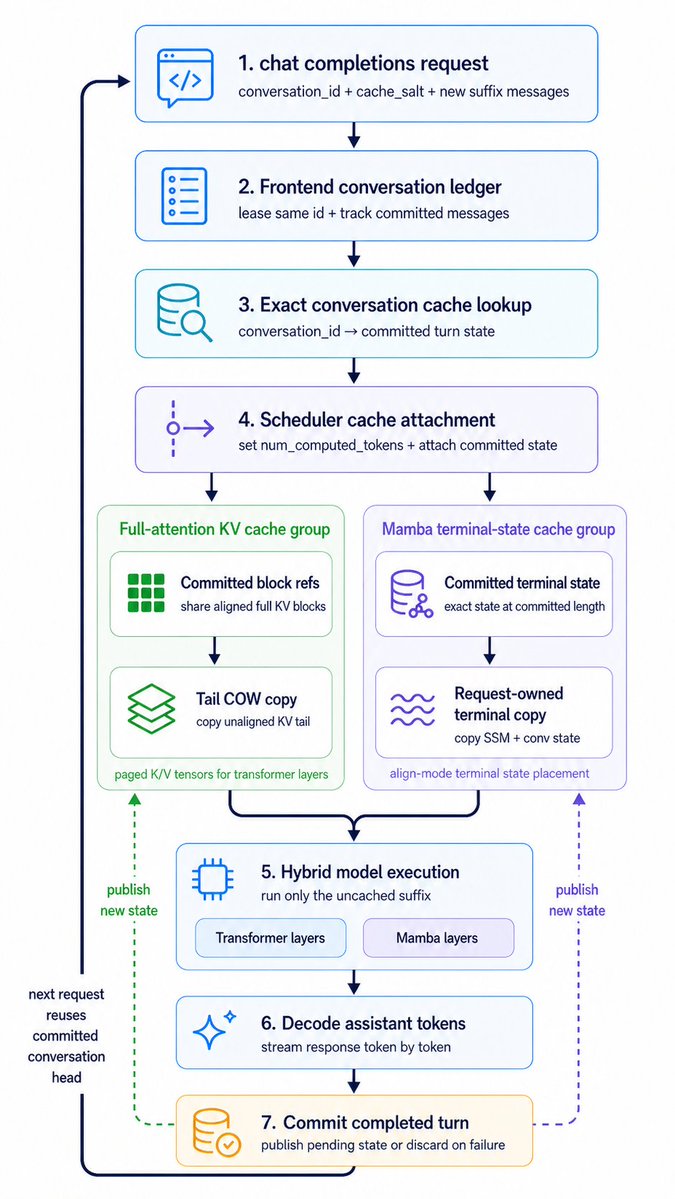
A polished vertical systems-architecture infographic showing a seven-step cached chat inference pipeline with dual cache branches, suitable for technical explainers and product presentations. - AIPinMaker
프롬프트
Create a clean vertical technical workflow infographic on a light gray background, using a minimalist modern product-diagram style with rounded white cards, thin colored outlines, simple vector line icons, dark navy text, and navy connector arrows. The composition is a single centered top-to-bottom flowchart with 7 numbered main steps, plus 2 parallel cache-group panels branching from step 4 into step 5, and a thick dark return arrow on the far left looping from the bottom back to the top. Use crisp sans-serif typography, generous spacing, subtle pastel accent colors, no gradients, no shadows, and presentation-slide clarity.

At the top center place step card 1 with a blue outline and a code/chat icon on the left. Title text: "1. {argument name="step 1 title" default="chat completions request"}". Subtitle beneath: "conversation_id + cache_salt + new suffix messages".

Below it place step card 2 with a blue outline and a document/list icon. Title: "2. Frontend conversation ledger". Subtitle: "lease same id + track committed messages".

Below it place step card 3 with a cyan outline and a database-with-magnifier icon. Title: "3. Exact conversation cache lookup". Subtitle: "conversation_id  committed turn state".

Below it place step card 4 with a purple outline and a branching scheduler icon. Title: "4. Scheduler cache attachment". Subtitle: "set num_computed_tokens + attach committed state".

From step 4, branch downward into 2 side-by-side group panels.

Left group panel: a pale green rounded container titled "Full-attention KV cache group". Inside it, stack 2 inner cards. First inner card has a green block-grid icon, title "Committed block refs", subtitle "share aligned full KV blocks". Second inner card below has a green layered-sheets icon, title "Tail COW copy", subtitle "copy unaligned KV tail". At the bottom of the green panel add small footer text: "paged K/V tensors for transformer layers".

Right group panel: a pale purple rounded container titled "Mamba terminal-state cache group". Inside it, stack 2 inner cards. First inner card has a purple database/network icon, title "Committed terminal state", subtitle "exact state at committed length". Second inner card below has a purple wavy-lines icon, title "Request-owned terminal copy", subtitle "copy SSM + conv state". At the bottom of the purple panel add small footer text: "align-mode terminal state placement".

Merge both group-panel outputs into a centered step card 5 with a blue outline and a microchip icon. Title: "5. Hybrid model execution". Subtitle: "run only the uncached suffix". Inside the bottom area of this card, include 2 pill-shaped labels side by side: "Transformer layers" and "Mamba layers".

Below it place step card 6 with a blue outline and a sparkle icon. Title: "6. Decode assistant tokens". Subtitle: "stream response token by token".

Below it place step card 7 with a warm yellow-orange outline and a database-with-check icon. Title: "7. Commit completed turn". Subtitle: "publish pending state or discard on failure".

Add a thick dark navy loop arrow running down the far left side, entering step 1 near the top from the left and returning from step 7 at the bottom back upward. Along this left loop, near the lower half, place stacked annotation text: "next request reuses committed conversation head".

Add 2 dashed publish arrows rising upward from step 7 toward the cache-group panels: one green dashed arrow on the left pointing to the green cache panel, labeled "publish new state"; one purple dashed arrow on the right pointing to the purple cache panel, also labeled "publish new state".

Keep the exact total count of 7 numbered main cards, 2 cache group panels, 4 inner cache cards, and 2 pill labels. Preserve a portrait aspect ratio similar to a conference-slide architecture diagram.참고 이미지
이 AI 이미지 프롬프트 템플릿 사용 방법
 1
1프롬프트 복사 — 템플릿의 프롬프트와 네거티브 프롬프트를 가져오세요.  2
2모델 선택 — 가장 잘 맞는 추천 AI 모델을 고르세요.  3
3생성 — 클릭 한 번으로 스튜디오를 열어 결과를 만드세요.
관련 템플릿
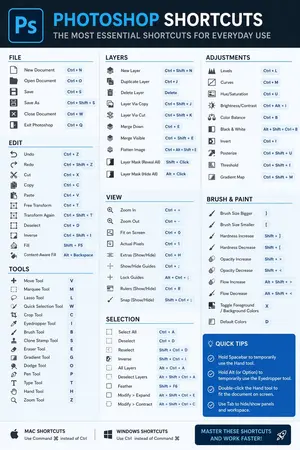
Software Shortcut Infographic
Create a infographic image of Software Shortcut Infographic. Style: photorealistic. Composition: balanced and well-framed. Lighting: natural with cinematic mood. Category: illustration. Reference: software-shortcut-infographic-14722.
Web-based Word-like rich text editor in one HTML file
帮我写一个类似word (参考软件)的网页版富文本编辑器,包含它的主要功能,所有代码放在一个html文件里。看这个效果: 标题, 段落, 左对齐, 粗体, 斜体, 右对齐, 下划线, 删除线, 背景色, 颜色, 编号, 撤撤回,最后再来个下载干拉, 直接生成html, 齐活!
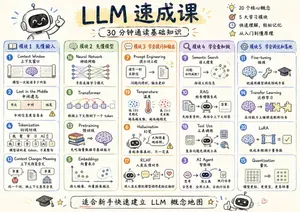
LLM Crash Course Visualizer
Create a infographic image of Llm Crash Course Visualizer. Style: photorealistic. Composition: balanced and well-framed. Lighting: natural with cinematic mood. Category: illustration. Reference: llm-crash-course-visualizer-22741.

Refreshing App UI with Nano Banana Pro Agent V1.2 and Gemini AI Studio
nano banana pro エージェントV1.2で VideコーディングしたアプリのUIを刷新するプロンプト
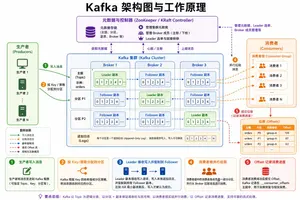
Kafka Architecture Diagram
Create a creative image of Kafka Architecture Diagram. Style: photorealistic. Composition: balanced and well-framed. Lighting: natural with cinematic mood. Category: photography. Reference: kafka-architecture-diagram-14754.
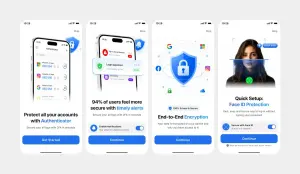
Clean Authenticator Onboarding UI
Using REFERENCE_1 as the primary UI reference and REFERENCE_0 only for the darker variant details if needed, recreate the mobile onboarding flow as a clean, front-facing design mockup instead of a photographed laptop screen. Extract and straighten the four iPhone-style screens, remove all camera perspective, glare, browser chrome, laptop edges, and surrounding environment, and place the screens evenly spaced on a light gray canvas. Keep the same white/light theme, rounded phone cards, blue security branding, typography hierarchy, icons, illustrations, and CTA style. Produce exactly 4 onboarding screens from left to right: 1) authenticator accounts list with headline “Protect all your accounts with Authenticator” and CTA “Get Started”; 2) security alert notifications with headline “94% of users feel more secure with timely alerts” and CTA “Continue”; 3) shield/lock encryption illustration with headline “End-to-End Encryption” and CTA “Continue”; 4) Face ID quick setup with the portrait/scan graphic, headline “Quick Setup: Face ID Protection”, secure Face ID toggle card, small privacy note, and CTA “Continue”. Use bright blue (primary color) as the main accent color, keep the app name as Authenticator (app name), and keep the status time as 10:28 (status time). Make the result look like a polished Figma export/product presentation, crisp and high resolution, with no real-world photo artifacts.39:T5f4,Using REFERENCE_1 as the
더 많은 프롬프트 탐색
카테고리별 AI 이미지·영상 프롬프트를 더 찾아보세요.