
텍스트 투 이미지
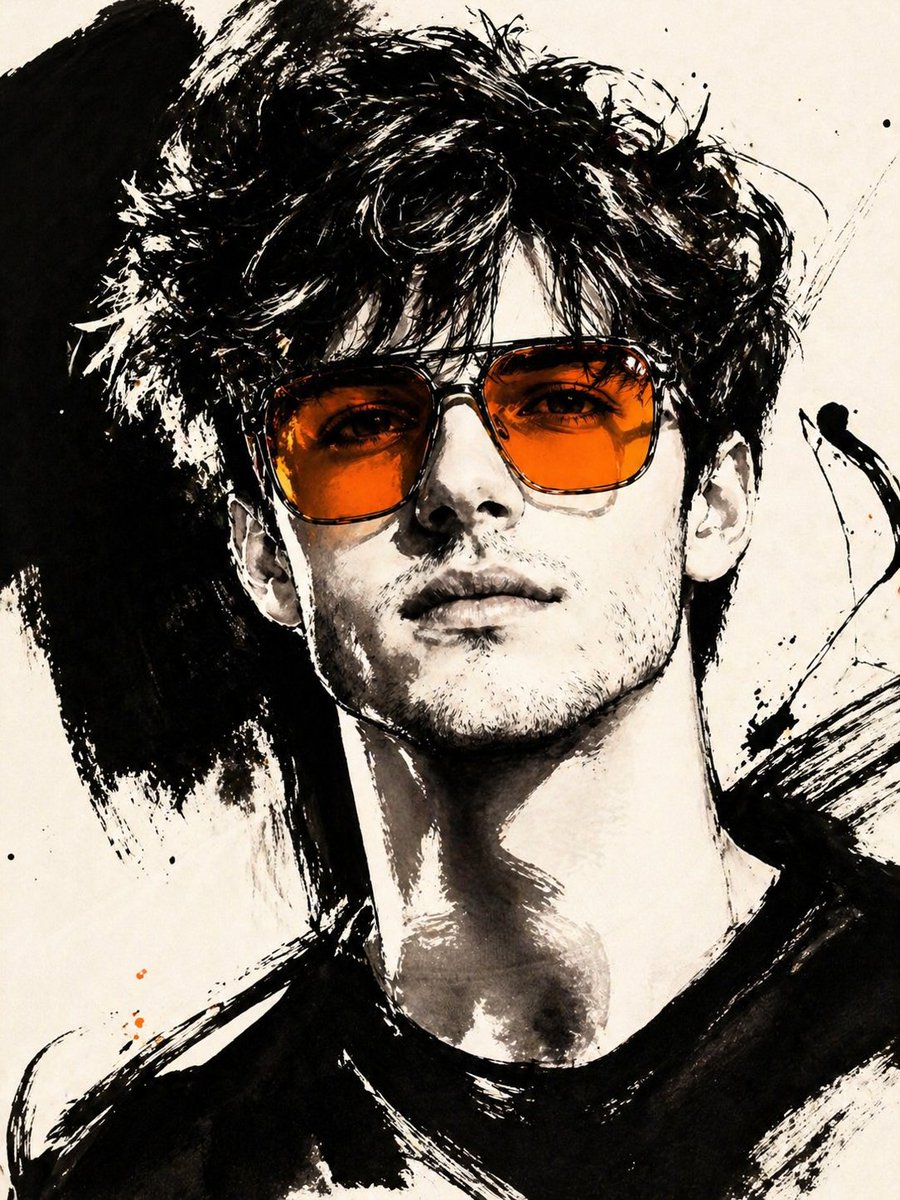
Gestural Ink Fashion Illustration — AI 이미지 프롬프트
An advanced image-to-image prompt that transforms a photo into a bold, high-fashion black ink illustration with a specific color accent. - AIPinMaker
프롬프트
ASPECT_RATIO: [{argument name="aspect ratio" default="3:4"}]

SOURCE_IMAGE: [{argument name="reference" default="uploaded photo"}]

ACCENT_COLOR: [{argument name="accent color" default="single vivid highlight color"}]

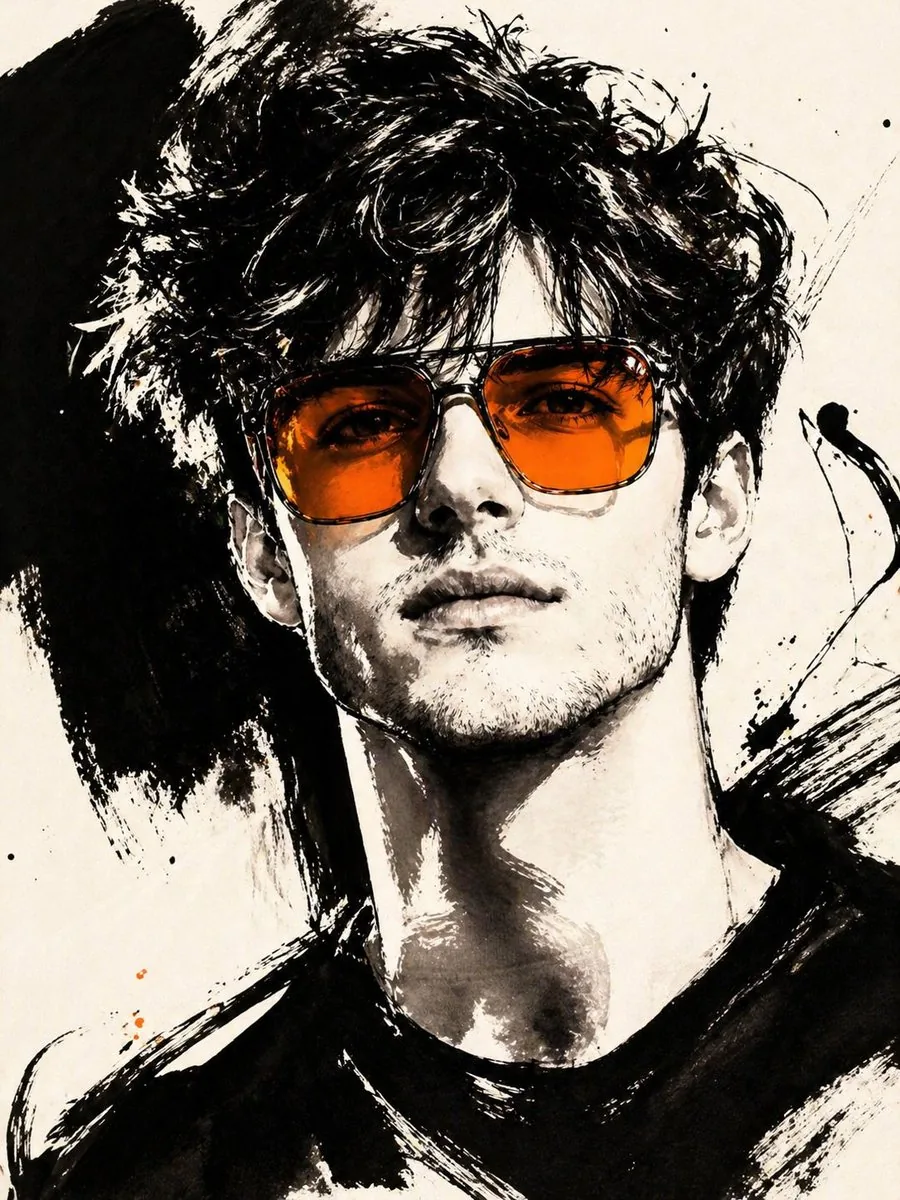
Use the uploaded photo as the base image and the only identity source. Keep the person exactly the same and clearly recognizable. Ignore the original framing and always recompose into a tight close-up or upper-body editorial crop, with the face dominating the frame. Transform the image into a gestural editorial ink fashion illustration. The style must be built from bold black brushwork, not delicate sketch lines.

Use:

very thick black brush strokes

broad dry-brush sweeps

large asymmetrical black ink masses

long loose calligraphic lines

broken contours

scratchy secondary linework

strong black-on-ivory contrast

smooth monochrome skin

The thick strokes must be clearly dominant. Do not render the portrait mainly with thin contour lines. Do not make it neat, polished, or softly illustrated. The image should feel painted with a loaded brush and finished with sharp expressive pen marks.

Keep the portrait stylish and high-fashion.

Use one hero accessory, preferably oversized translucent tinted sunglasses.

The accent color [ACCENT_COLOR] must live mainly inside that accessory, especially in the lenses, as a bold luminous tint. Only tiny supporting traces of the same color may appear elsewhere.참고 이미지
이 AI 이미지 프롬프트 템플릿 사용 방법
 1
1프롬프트 복사 — 템플릿의 프롬프트와 네거티브 프롬프트를 가져오세요.  2
2모델 선택 — 가장 잘 맞는 추천 AI 모델을 고르세요.  3
3생성 — 클릭 한 번으로 스튜디오를 열어 결과를 만드세요.
관련 템플릿
Engineering annotations overlay
{ "image_description": { "overall_theme": "High-technology augmented reality analysis of a scenic outdoor portrait", "resolution": "4K UHD, hyper-realistic with sharp data overlay", "subject": { "name": "Woman_Model_A", "pose": "Seated_profile, looking_left, side", "attire": { "garment": "Draped_One_Shoulder Pleated_Silk_Green_Dress", "color_hex": "#1E6641", "footwear": "Boots_Maroon", "accessory": { "type": "Bag_Two-Tone Leather/Metal", "details": "Gold_Buckle_feature" } } }, "environment": { "location": "Nusa_Penida_Cliffside", "terrain": "Rocky_Path", "details": { "main_trees": { "type": "Fern_Tree", "count": 3 }, "vegetation": "Lush mossy trees, vibrant red flowers, exotic plants", "boundary": "Wooden fence posts with thick rope rail", "background": "Distant tree-covered cliffs partially obscured by mist, with birds in flight", "specific_sign": "Small sign on a fence post with the text 'Kelingking'" } }, "data_overlay": { "style": "Translucent cyan digital interface with glowing gridlines and panel outlines", "panels": [ { "position": "Top-Left (Stacked Vertical)", "content": [ "ANALYSIS: SUBJECT_DETECT", "POSE: SEATED_PROFILE", "OUTFIT: DRAPED_ONE_SHOULDER", "COLOR: #1E6641_SILK_GREEN", "ACCESSORY_1: BAG_TWO-TONE", "MATERIAL: LEATHER/METAL", "HEEL: BOOTS_MAROON" ] }, { "position": "Top-Center (Floating Block)", "content": "COORDINATES: -8.7495° S, 115.0934° E" }, { "position": "Center-Left (Embedded Annotation)", "linked_to": "Leftmost Fern Tree", "content": "FERN_TREE (count: 3)" }, { "position": "Center-Right (Embedded Annotation)", "linked_to": "Rightmost Fern Tree", "content": "FERN_TREE (count: 3)" }, { "position": "Top-Right (Annotation)", "linked_to": "Cliffs", "content": "CLIFF_DISTANCE (approx: 450m)" }, { "position": "Bottom-Right (Formatted JSON Block)", "content": "{\n \"model\": {\n \"name\": \"Woman_Model_A\",\n \"pose\": \"Seated_left_looking_side\"\n },\n \"apparel\": {\n \"garment\": \"Pleated_Silk_Green_Dress\",\n \"style\": \"One-Shoulder_Draped\"\n },\n \"bag\": {\n \"type\": \"Two-Tone_Leather_Gold-Buckle\",\n \"brand\": \"Luxury_Accessory\"\n },\n \"location\": \"Nusa_Penida_Cliffside\",\n \"terrain\": \"Rocky_Path\"\n}" } ] } } }4e

Printable Paint by Numbers Generator
Create a professional high-resolution paint-by-numbers template from the provided image as a single PNG only. Use an A4 portrait ratio canvas (canvas size) at 300 DPI with a pure white background. The main artwork must be a clean black-and-white line drawing containing only black outlines, black numbers, and white unfilled paintable areas. Do not create a PDF, document, mockup, multi-page layout, or colored version. Do not use color, gray, shading, texture, gradients, transparency, or pre-filled areas in the main artwork. Analyze the original image and choose the number of colors adaptively based on image complexity, from 1 to a maximum of 14 colors (color count). If the image has only 1–2 important colors, use only 1–2 colors; for simple images use 3–6 colors; for medium complexity use 7–10 colors; for complex, photographic, or highly detailed images use 11–14 colors. Do not force unnecessary colors. Assign each selected color one unique number and merge similar shades unless separation is essential for recognition. Convert the image into simplified, fully closed, easy-to-paint regions while preserving the recognizable composition, main objects, characters, text, logos, foreground, background, and key details. Every paintable white region must contain the correct black number, centered clearly inside the matching area, readable, upright, and not touching outlines. Large black or dark areas from the original must remain white paintable regions with the correct number, not filled black. Only tiny permanent black line details, such as mouth lines, nostrils, pupils, eyelashes, seams, or small decorative strokes, may remain unnumbered. At the bottom of the same PNG, add a neat legend section with the heading “Instructions”, the sentence “Paint the areas with the matching colors.”, and a list of every used number with a small color swatch and the English color name. Color swatches may appear only in the legend. Ensure the numbering exactly matches the legend, every paintable area is numbered, all regions are closed, and the final result is clean, professional, print-ready, and recognizable as the original image.3b:T8a9,Create a p
Vogue Style Fashion Illustration
Create a fashion image of Vogue Style Fashion Illustration. Style: photorealistic. Composition: balanced and well-framed. Lighting: natural with cinematic mood. Category: photography. Reference: vogue-style-fashion-illustration-23278.

Image-to-Sketch Transformation Prompt with Hand Detail
Create a cinematic image of Image To Sketch Transformation Prompt With Hand Detail. Style: photorealistic. Composition: balanced and well-framed. Lighting: natural with cinematic mood. Category: cinematic-video. Reference: image-to-sketch-transformation-prompt-with-hand-detail-2528.

Convert Graphic to Pencil Rough Design
Create a creative image of Convert Graphic To Pencil Rough Design. Style: photorealistic. Composition: balanced and well-framed. Lighting: natural with cinematic mood. Category: photography. Reference: convert-graphic-to-pencil-rough-design-2375.

Vogue Style Fashion Illustration
Create a fashion image of Vogue Style Fashion Illustration. Style: photorealistic. Composition: balanced and well-framed. Lighting: natural with cinematic mood. Category: photography. Reference: vogue-style-fashion-illustration-22581.
더 많은 프롬프트 탐색
카테고리별 AI 이미지·영상 프롬프트를 더 찾아보세요.